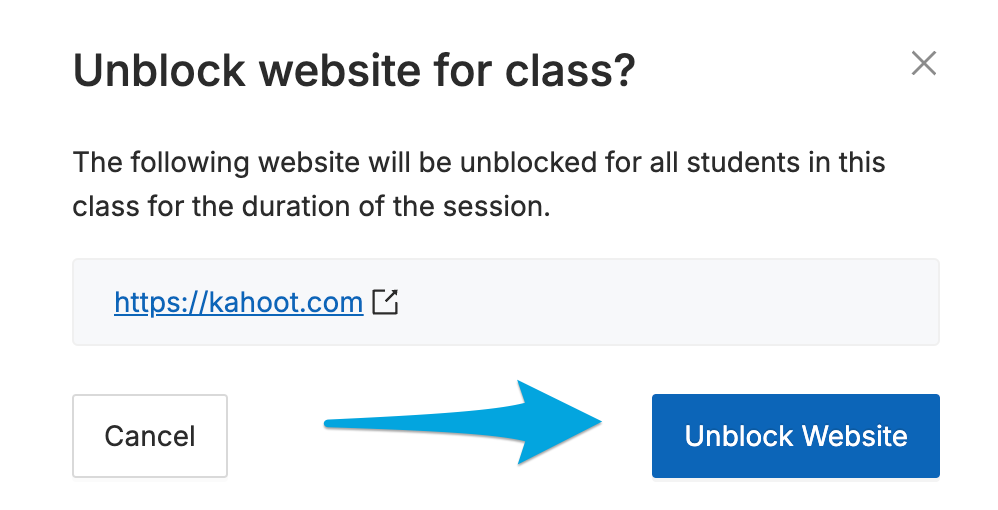
When a student is blocked from a website or YouTube video by a GoGuardian Admin Policy that has Teacher Override enabled, teachers will see an Unblock for class prompt. Clicking the Unblock button prompts a confirmation page, allowing the teacher to confirm that they would like to unblock the content for all students in the class.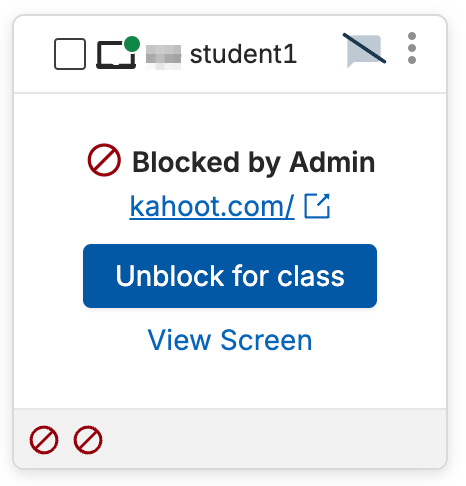
Override YouTube Blocks
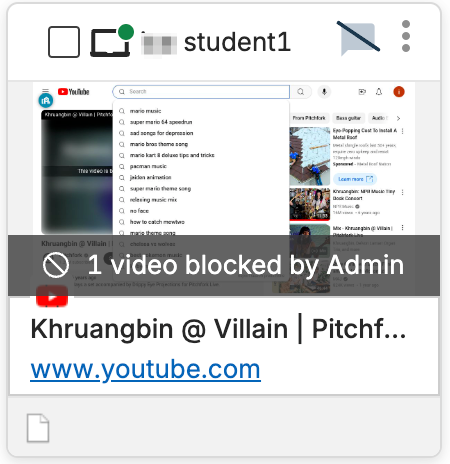
When a student is blocked from accessing a YouTube video by a policy that has Teacher Override enabled, teachers will see an "X number of videos blocked by Admin" message on the student's tile.
To allow the video:
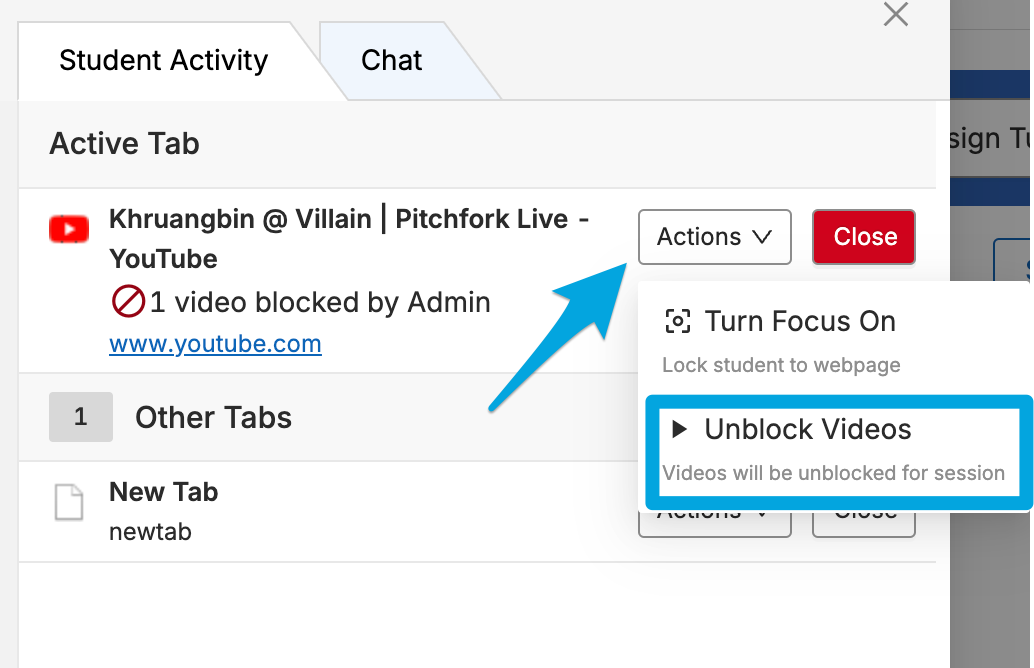
- Click on the message or expand the student's screen view.
- Click the Actions drop-down menu and select Unblock Videos.
- Finally, click Unblock Video on the confirmation page to override the block and allow access to the video.